Triumvirate Blog
New in Studio: Letters, Text Messages, Notes and Footnotes
Format the scenes that need something special, and they print, preview and read the same everywhere
Some of the best moments in a book are not plain paragraphs. A letter left on a kitchen table. A late-night text conversation. A note pinned to a door. A footnote with the history behind a line. Until now, getting those to look right in a printed book meant fighting your formatting. Now Studio does it for you.
Four new tools in the Elements menu
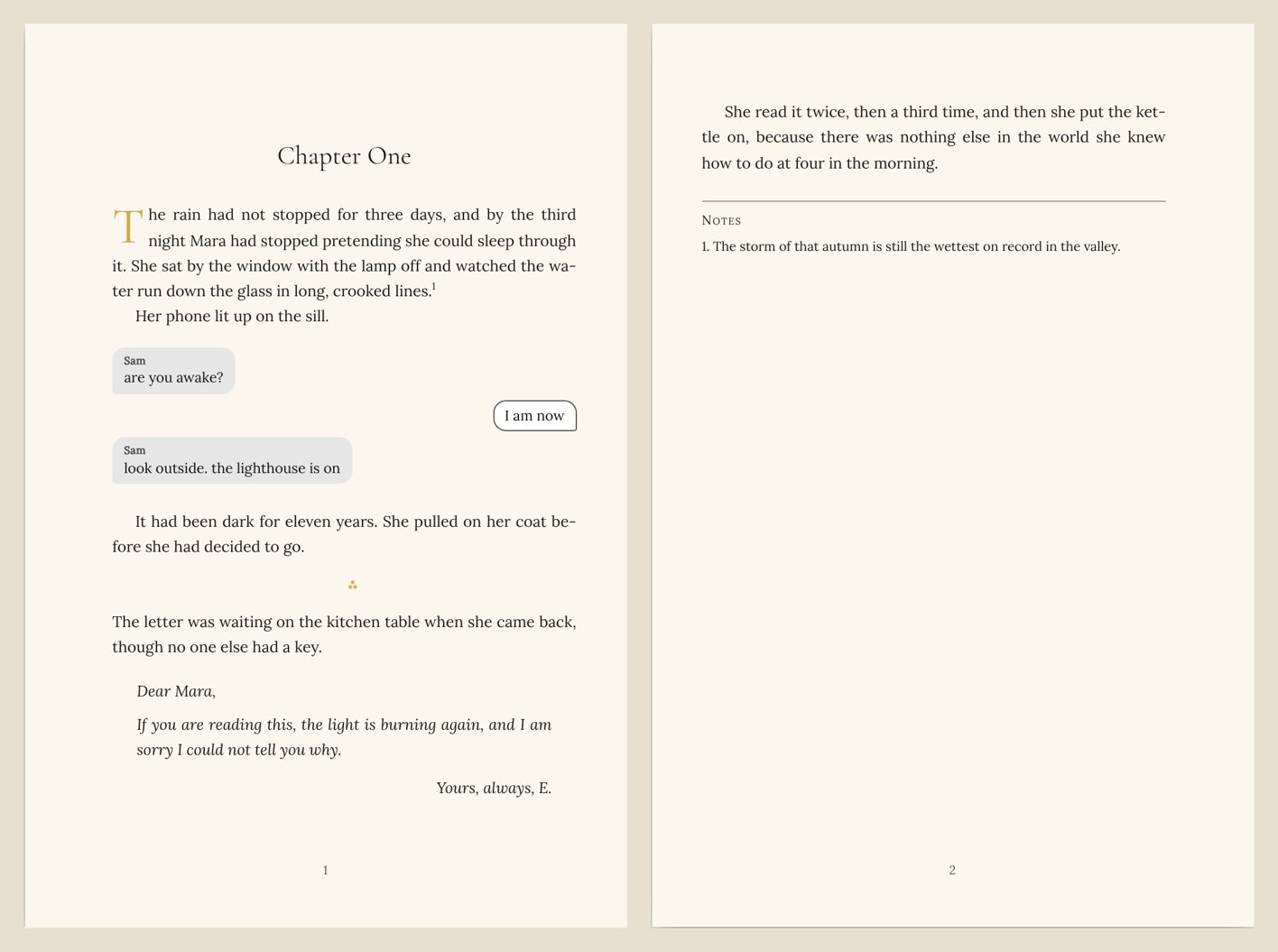
A footnote, a text conversation and a letter, as they print. The Notes list follows at the end of the chapter.
- Letter. For letters, diary entries and emails: set in from the margins with the signature on the right.
- Note. A note in a ruled box, for signs, clippings and anything pinned, scribbled or passed across a table.
- Text Messages. Write each line as Sam: hey or Me: hi and Studio turns it into a conversation, with their messages on the left and yours on the right.
- Footnote. Add a numbered note anywhere in your text. The notes are gathered at the end of the chapter, the way many novels and memoirs print them. Click a note number to edit or remove it.
Select your text, open Elements in the Studio editor, and choose one. Letter, Note and Text Messages switch off again if you choose them a second time.
The same everywhere
- Print and eBook alike. Your printed book, your eBook and Studio's page preview all show these the same way.
- Black and grey only. They are designed in black and grey, so they never push your book into colour printing.
- Direct understands them. If you import your Studio book into Direct, the letters, bubbles and notes come with it.
Studio tells you once, the first time you use each one in a book, exactly how it will print. For example, footnotes are listed at the end of the chapter rather than at the bottom of each page.
Also fixed in Studio this week
- Your choices now save reliably. Some settings, including your font, theme and certain cover settings, were not always saved. They are now. If a change you made recently did not stick, please make it once more.
- Direct keeps your Studio print settings. For a book set in Studio, Direct now uses the trim size, paper and interior colour you chose in Studio, so your listing always matches your print file. Change them in Studio, which updates the file.
- Studio asks first. Before you use a feature that has a catch, such as a change that affects your printing cost, Studio explains it and lets you decide.
Want to try the new tools before you sign in? Try Studio free: paste a chapter and see it as book pages. Or open Studio and find them under Elements.